Two-Factor Authentication Explained

A strong password is essential. But it is not enough on its own.
If someone steals your password — through phishing, a data breach, or snooping — they can get into your account as easily as you can. A single lock is only as secure as the key that opens it.
Two-factor authentication (2FA) adds a second lock. Even if an attacker has your password, they still cannot get in without the second factor.
What Is Two-Factor Authentication?
Two-factor authentication requires two different things to verify who you are.
The three things you can use to prove your identity are:
- Something you know — a password or PIN
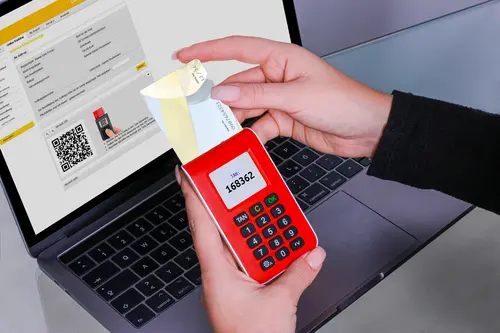
- Something you have — a phone, a security key, a card
- Something you are — your fingerprint, your face, your iris
With 2FA, you need two of these. The most common combination is a password (something you know) plus a code sent to your phone (something you have).
Why One Factor Is Not Enough
Consider the password alone.
An attacker can obtain your password through any number of ways: a phishing email, a data breach at another company, or simply guessing if your password is weak. Once they have it, the login page treats them exactly like you.
With 2FA, that password becomes useless on its own. The attacker would also need physical access to your phone or your security key. Most attackers are not willing — or able — to go that far.
The Different Ways to Verify
Not all 2FA methods are created equal. Here is how the common ones compare.
SMS Codes
The service sends a six-digit code to your phone by text message. You type it in to finish logging in.
Pros: Easy, no extra apps needed, works on any phone.
Cons: SMS can be intercepted. Attackers can sometimes trick phone companies into redirecting messages. It is far better than nothing, but not the strongest option.
Authenticator Apps
An app on your phone — such as Google Authenticator, Microsoft Authenticator, or Authy — generates a six-digit code that changes every 30 seconds. You type in the current code to log in.
Pros: More secure than SMS. Codes never travel over the network. Works offline.
Cons: Requires installing and setting up an app.
Hardware Keys
A small physical device — like a YubiKey — plugs into your computer or phone. You simply press a button to confirm your login.
Pros: The most secure 2FA method available. Immune to phishing, interception, and SIM swapping.
Cons: Costs money to buy. Easy to lose (though you can register multiple keys).
Biometrics
Your fingerprint or face is used as the second factor. Many phones and laptops now support this seamlessly.
Pros: Extremely convenient. Nothing to carry or remember.
Cons: Only useful on devices that support it. Passkeys use this same technology.
What 2FA Looks Like in Practice
Here is a typical 2FA login step by step.
- You enter your username and password.
- The service recognises the login is from an unfamiliar device.
- A prompt appears: “Enter the code sent to your phone.”
- You check your phone, read the six-digit code, and type it in.
- You are logged in.
The whole process takes about ten seconds. The one-time code cannot be reused, and it expires quickly. Even if someone sees the code, it will not work by the time they try to use it.
Why Your Business Needs 2FA
Hospitality businesses are not exempt from cyberattacks. In fact, many attackers specifically target smaller businesses because they assume security will be weak.
Here is what 2FA protects in a typical venue.
Staff Scheduling and Payroll
Your rota software and payroll portal contain bank details, National Insurance numbers, and addresses. If an attacker gains access, they can redirect salary payments or steal identities. 2FA on these accounts is non-negotiable.
Booking Systems
If you take bookings online, your booking system holds customer payment data. A breach could mean fines under data protection law and a serious hit to your reputation.
Business Email
Your business email is often the master key to everything else — password resets, contracts, supplier communications. Securing email with 2FA is one of the most effective steps you can take.
How to Enable 2FA
Most major online services support 2FA. The setup is usually straightforward.
- Go to your account security settings.
- Look for “Two-factor authentication” or “Two-step verification.”
- Choose your preferred method (app or SMS).
- Follow the prompts to scan a QR code or confirm your phone number.
- Test the login to make sure it works.
Encourage your staff to enable 2FA on any account that holds company data. If you use a rota platform that supports 2FA, make it mandatory for managers.
The Bottom Line
A password is a single door. Two-factor authentication adds a second door — and attackers rarely carry two keys.
It is one of the cheapest, simplest, and most effective security measures available. It takes ten minutes to set up and can save your business from a devastating data breach.
Use 2FA everywhere you can. Combine it with strong passwords and, where possible, passkeys. Your accounts will be dramatically harder to compromise.